RA103 Multiple File Upload Process
This aPay report uploads data from CSV loadsheet files for aPay configuration tables into staging tables within aPay. The RA103 report will undertake basic validation of data, such as ensuring the file structure is correct, data in fields does not exceed field lengths, the format of data is valid, e.g. character-based, numeric or date fields. Records that fail this validation will be reported as exceptions on the report.
The ‘RA103 - Multiple Config File Upload Process’ report may be launched from menu 9600. To load data, the CSV loadsheet files must first be copied onto the interface_files directory of the aPay environment (as defined in the CON_DEF setting EXTERNAL_LOAD_PATH) before launching the RA103 report.
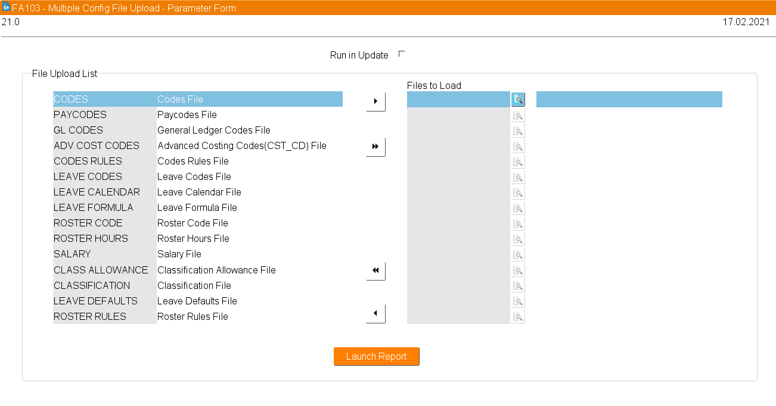
When launching the report, the following parameter form will appear:
Each table in the File Upload List has a Sequence assigned. This load sequence determines how the File Upload List is ordered. This order is a dependency order which is essential when loading multiple files to ensure that data upon which other data is dependent is loaded in the correct order irrespective of the order the tables were selected.
The RA103 report may be run in update or non-update based on the ‘Run in Update’ checkbox. If unchecked, the multiple file load process will run in non-update mode and will report any exceptions without committing the records into the Staging tables. If the ‘Run in Update’ checkbox is checked, the process will report any exceptions and will commit any successful records into the Staging tables. The staging table is named as per the aPay configuration table name but with an extension of _API_TEMP, for example the staging table for CODES table is CODES_API_TEMP.
An example of the RA103 report layout is as follows (showing 1 record rejected and 3 records loaded):
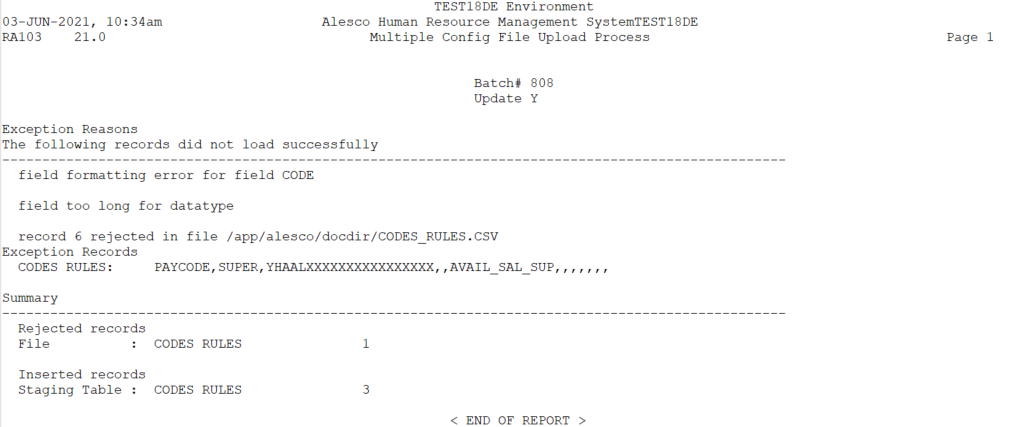
Any exceptions should be reviewed and the loadsheet data corrected where required as rejected records will not be loaded into staging tables. The RA103 report can then be re-run to reload the records into the staging tables.
When the RA103 report is run, a Batch# is automatically assigned to identify the records loaded as part of the run. This batch# is required to be entered when launching the RA104 report.